How to Navigate Your Roquet K Course
Your Step-by-Step Learning Guide
Welcome to Roquet K! This guide will walk you through the basic steps of navigating your course. While course content may vary, the navigation, learning flow, and course rules remain consistent throughout the Roquet K learning experience.
Browse the Certified Course Catalog
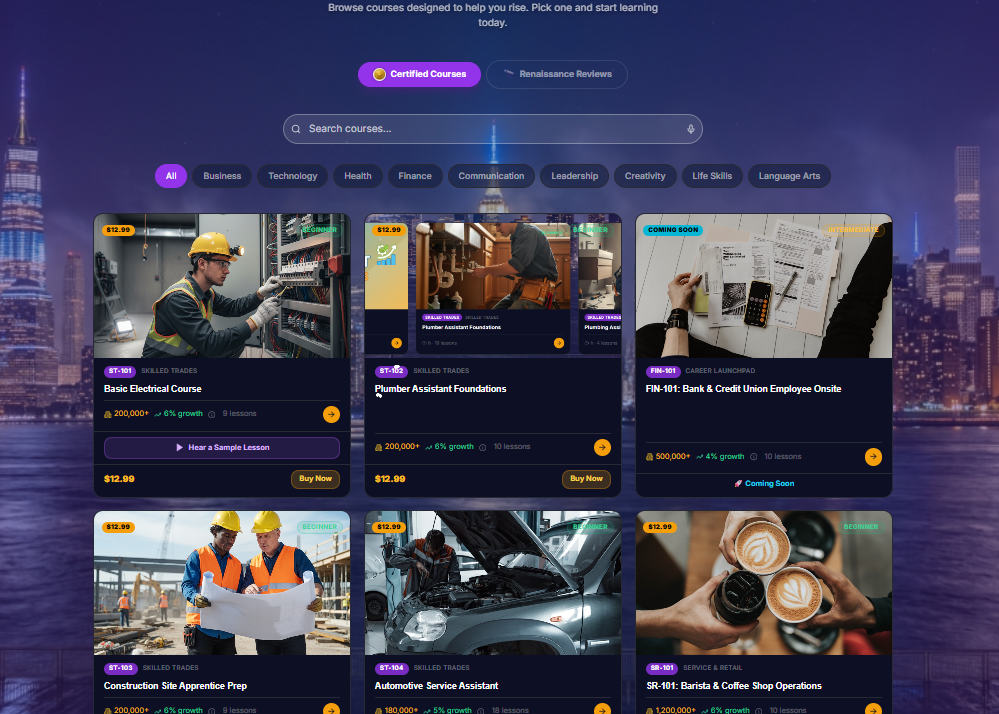
The Certified Course Catalog — browse all available courses
Begin by browsing the Certified Course Catalog.
Take a moment to explore the available courses and select the one that best matches your learning goals. Once you've found your course, click on it to view the course details.
Enroll in Your Course
Course Details page — click Enroll to begin
Click the Enroll button to begin. Enrolling unlocks the course and allows you to begin your learning journey.
Good to Know
You may Enroll or Unenroll whenever you choose.
Enroll allows you to access and complete the course.
Unenroll removes your access until you decide to enroll again.
This flexibility allows you to manage your courses whenever you like.
Review the Course Introduction
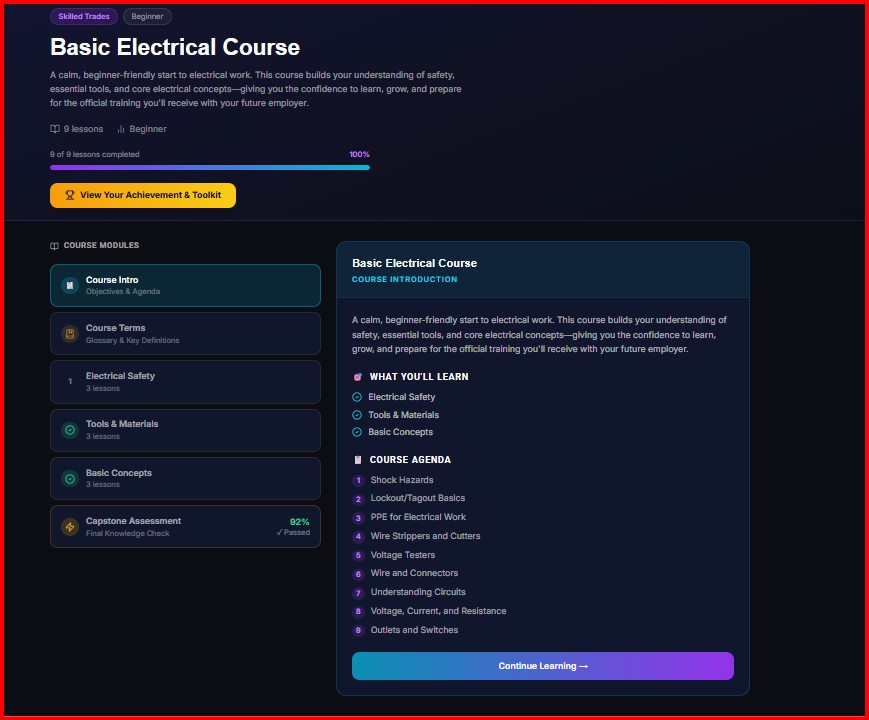
Course Introduction — overview, what you'll learn, and who it's for
Before beginning your lessons, take a few moments to review the Course Introduction.
This section provides:
- • A brief overview of the course
- • What you'll learn
- • Skills you'll develop
- • Who the course is designed for
Reading the introduction helps you understand what to expect before beginning your first lesson.
Explore the Course Terms
Course Terms — browse important terminology by category
Each course contains a curated collection of important terms that you'll encounter throughout your training.
Browse the glossary by selecting the available categories. Roquet K will automatically display:
- • Important course terminology
- • Definitions
- • Helpful explanations
You can revisit the Course Terms section anytime during your training as a quick reference.
Open a Module
Course Modules — organized into focused learning units
Courses are organized into learning modules. Depending on the course, you may see:
- • Four modules
- • Six modules
- • Nine modules
Select a module to view the lessons it contains.
Begin Your First Lesson
Lessons within a module — completed in order, one at a time
Each module contains one or more lessons. Lessons must be completed in order.
You cannot skip ahead to later lessons until the previous lessons have been successfully completed. Click the first available lesson to begin.
Complete the Lesson
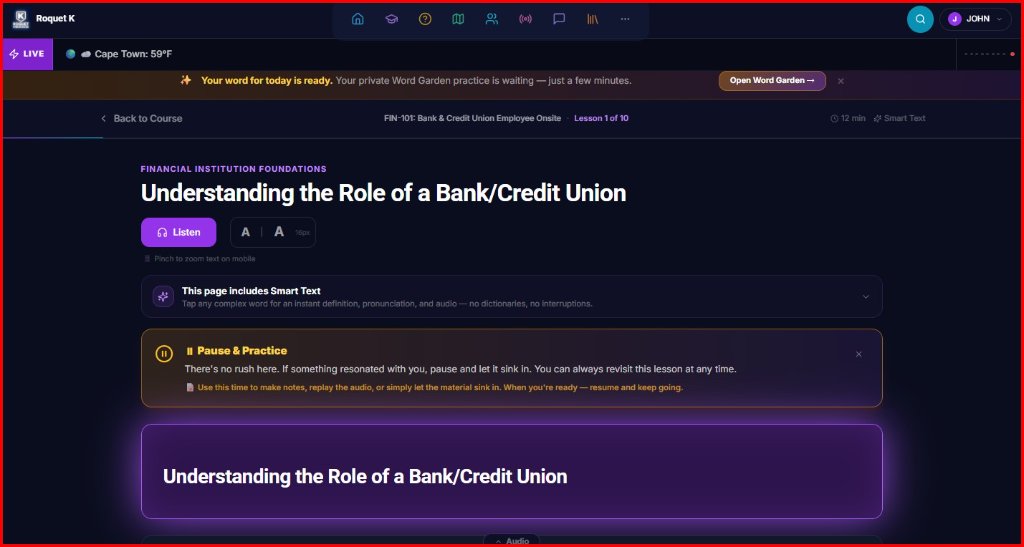
Lesson Screen — read, listen, or use both
Each lesson contains complete instructional content designed to let you learn in the way that works best for you. Whether you enjoy reading, listening, or using both, you're always in control of your learning experience.
Reading the Lesson
Read the lesson directly from your screen at your own pace. If you'd like larger or smaller text, use the Font Size controls located beside the Listen button near the top of the lesson.
Listen button and Font Size controls — near the top of every lesson
Adjust the font until it is comfortable for you. Learning should always be easy to read.
Roquet K SmartText (Exclusive Feature)
SmartText — tap any highlighted word for an instant definition
Throughout each lesson you'll notice highlighted words. These are powered by Roquet K SmartText, an exclusive Roquet K learning feature designed to support your understanding without interrupting your lesson.
Simply hover over or click a highlighted word to instantly access:
- • The definition as it relates to this course
- • Proper pronunciation
- • Audio pronunciation (available for many terms)
SmartText allows you to quickly understand unfamiliar words without leaving your lesson.
Listening to the Lesson
The Listen button — located near the top of the lesson
If you prefer listening, click the Listen button located near the top left of the lesson beneath the lesson title. Professionally narrated audio will begin playing for that lesson.
Using the Audio Controls
Audio Controls — play, pause, restart, volume, and auto-scroll
The audio controls are located near the bottom of the lesson. If you don't immediately see them, simply scroll down to the Audio section.
The audio player includes:
- • Play
- • Pause
- • Restart
- • Volume Control
- • Auto-Scroll
Important Audio Information
Lesson audio is designed to be experienced from beginning to end. Please keep in mind:
- • Audio cannot be scrubbed or fast-forwarded.
- • You may rewind at any time.
- • Selecting the Restart button begins the lesson again from the beginning.
There is never a penalty for listening more than once.
Auto-Scroll
Auto-Scroll keeps the lesson text centered while audio plays
While lesson audio is playing, Auto-Scroll automatically keeps the lesson text centered in your viewing window. This allows you to comfortably follow along while listening.
If you would rather scroll manually, simply turn Auto-Scroll off. You may then move through the lesson at your own pace.
Volume Control
The audio player includes a volume control so you can comfortably adjust the narration to your preferred listening level at any time during the lesson.
Pause Whenever You Need To
One of the greatest advantages of learning with Roquet K
You are never rushed. Feel free to pause your lesson whenever you need to:
- • Think about what you've learned
- • Review a section
- • Take notes
- • Take a short break
• There are no time limits.
• There are no penalties for pausing.
• You are never being timed.
Learn at the pace that works best for you.
Complete the "What Should You Do Next?" Scenario
Real-World Scenario — apply what you just learned
At the conclusion of each lesson you'll encounter a real-world workplace activity called:
What Should You Do Next?
This brief scenario asks you to apply what you've just learned by making a workplace decision. These activities help reinforce your learning before moving on to the Knowledge Check.
Continue to the Knowledge Check
Continue to Knowledge Check — appears after the Real-World Scenario
After completing the Real-World Scenario, you'll see a button labeled:
Continue to Knowledge Check
Selecting this button immediately opens the Knowledge Check for that lesson. You may also access the Knowledge Check directly from the lesson once the Real-World Scenario has been completed.
Complete the Knowledge Check
Knowledge Check — answer each question carefully
Answer each question carefully.
To continue to the next lesson, you must achieve a score of:
70% or Higher
Once you've successfully passed the Knowledge Check, the next lesson becomes available.
Explore the Deeper Dive (Optional)
Deeper Dive — optional expanded learning for each lesson
Before moving on, you have the option to explore additional learning resources by selecting:
Deeper Dive
The Deeper Dive provides expanded information for learners who would like to explore the topic in greater depth. Although optional, it is highly recommended for anyone who wants to strengthen their understanding beyond the lesson.
Continue Your Learning Journey
Next Lesson — continue through the course
After successfully completing the Knowledge Check, select:
Next Lesson
Continue through each lesson, module, and assessment until you've completed the course.
Remember these simple navigation rules:
- ✓ Complete lessons in order.
- ✓ Complete the Real-World Scenario before the Knowledge Check.
- ✓ Earn a score of at least 70% on each Knowledge Check.
- ✓ Explore the Deeper Dive whenever you'd like additional information.
- ✓ Continue until every lesson and module has been successfully completed.
Course Navigation at a Glance
Welcome to Roquet K
Learning is a journey, and every lesson builds on the one before it. Whether you choose to read, listen, explore additional resources, or learn at your own pace, every feature of your Roquet K course has been thoughtfully designed to support your success.
Remember, there are no shortcuts to learning — but there is always support along the way. Take your time, use the tools available to you, and build confidence with every lesson.
Welcome to Roquet K. We're excited to be part of your learning journey.